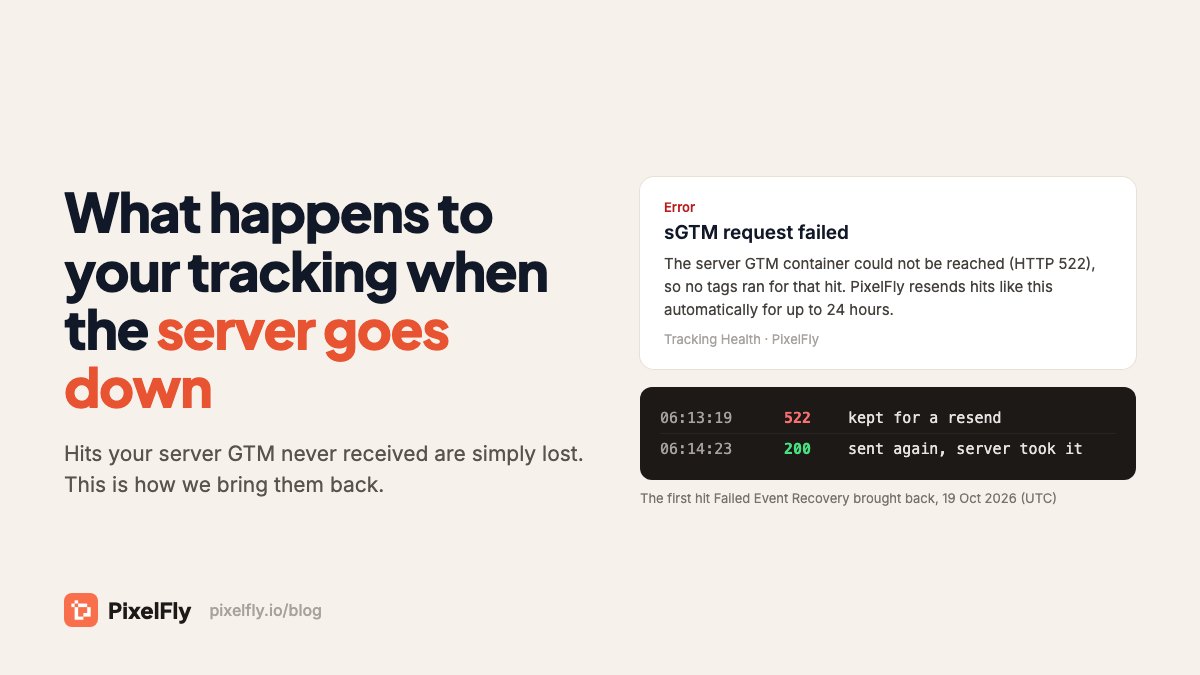
Server-side tracking fixed a lot for online stores. Ad blockers stopped eating purchase events, Safari stopped wiping cookies after a week, and Meta got cleaner data to optimise on. But it added one new weak spot that is easy to forget: your server GTM container has to answer every single hit. When it doesn't, that hit is gone.
We run server-side GTM for a few hundred stores, so we wanted real answers. How often does a server miss a hit? What do those errors actually mean? And can we get the events back? This post is what we found, and what we built because of it.
How Often Servers Miss a Hit
Since 23 September 2026, PixelFly's Tracking Health has flagged a failed request to a customer's server GTM container 20,164 times. It counts several failures that arrive together as one, so the real number of failed requests is higher. They came from 273 server containers (we run about 590 today). For scale, we handle about 2.4 million server-side requests on an average day, so failures are a small share of all traffic.
The average hides the real problem, though. Failures are not spread evenly. They come in bursts, on a few servers: a container that restarts at the wrong moment, or one stuck restarting for hours. One container alone accounted for more than 7,700 of those flags. For the store behind a server like that, a bad hour means every purchase in that hour is missing from Meta and GA4.
Why the Browser Doesn't Try Again
A tracking hit travels like this: the shopper's browser sends it to your tracking subdomain, PixelFly passes it to your server GTM container, and the tags in that container send it on to Meta, GA4, Google Ads and the rest. If the server container can't be reached, none of those tags run.
Browsers send tracking hits with sendBeacon or fetch with keepalive, so the hit survives the shopper leaving the page. Both are best-effort. The page doesn't wait for an answer, and nothing in it keeps a failed hit to send later. Google's own way to retry failed Analytics hits is a separate service worker add-on (Workbox), not something the tags do by themselves. In practice, a hit your server didn't take is simply lost.
What the Error Codes Mean
Tracking Health keeps the most recent status code for each container, so grouping those 20,164 flags by that code gives an approximate split rather than an exact one. It still shows three clear groups:
| Status | What it means | Did your tags run? | Share |
|---|---|---|---|
| 522, 503, 502 | The server couldn't be reached: no connection in time, no server ready, or the connection dropped | No | about 62% |
| 400 | The server got the request but rejected it, usually because of a setup problem in the container | No | about 28% |
| 520, 504, 524 | The server got the request but didn't answer properly or in time | Maybe | about 10% |
A 522 comes from Cloudflare, which sits in front of most tracking domains. It means Cloudflare couldn't open a connection to the server in time. A 502 or 503 usually tells the same story from the other side: the server was restarting, and nothing was ready to answer yet.
Why Servers Go Down
The plain answer: server GTM containers restart. Google ships new versions of the image, servers get moved, and sometimes one crashes. A restart usually takes seconds. But a server GTM container can be slow to start, and in September we measured some of ours taking more than three minutes. If the system watching the server expects an answer sooner, it restarts the server again, and again. In September we found some of our servers stuck in exactly that loop, and we're fixing the cause too.
None of this is unique to us. Stape's own guide to server-side GTM errors says it directly: a 503 means "your tagging server is down", and "in most cases, you can't solve this problem independently and need to contact hosting support." Every host has these moments. The question is what happens to the hits sent during them.
What Hosts Usually Do About It
Most of the effort in this industry goes into keeping servers up. Stape, for example, can run a container across several zones on its Business plan and up, so one zone going down doesn't take the server with it. That is a good idea, and it makes outages rarer.
It doesn't bring back the hits that were lost while a server was down, though. As far as their public pages show (we checked in October 2026), none of the hosts we usually compare ourselves with, Stape, TAGGRS and Addingwell, resend those hits.
What We Built: Failed Event Recovery
Since 19 October 2026, when a hit can't reach a customer's server GTM container, PixelFly keeps a copy and sends it again once the server answers. We call it Failed Event Recovery. It works for every server container on every PixelFly plan, Free included, and there is nothing to set up.
- What it resends: hits that never reached the server, meaning no connection, or HTTP 502, 503, 521 or 522. That covers GA4 hits, Data Client requests on
/dataand other tracking hits. - When: after 1 minute, then 5 minutes, 30 minutes, 1, 2 and 4 hours, then every 4 hours, for up to 24 hours after the first failure. Each wait varies a little, so a server that has just come back isn't hit by everything at once.
- What it leaves alone: 520, 504 and 524, because the server may already have run its tags and a resend could count the event twice, and 400 errors, which would fail the same way again. GTM Preview traffic is never resent.
- No double counting: the original hit counts once against your plan and shows in your event logs with its real status. A resend is never counted again. Servers that send hits to your container, such as a CRM or our COD order firing, are told the hit was accepted, so they don't send it a second time.
We turned it on the morning of 19 October. Half an hour later, it made its first two rescues:
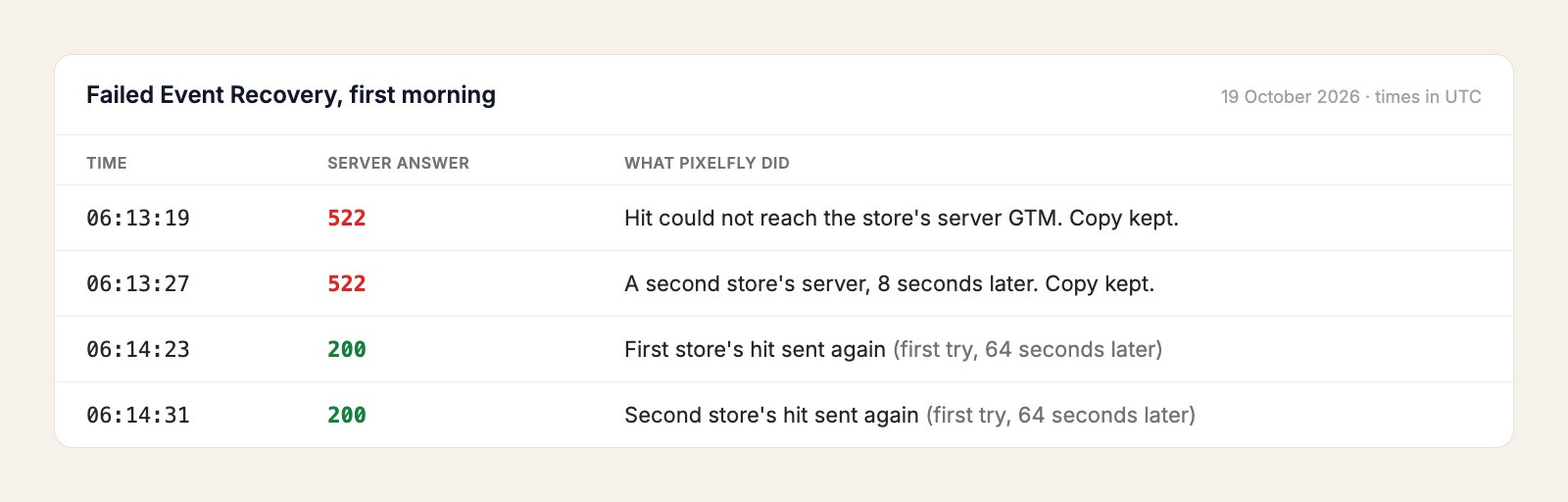
A day earlier, both hits would simply have been lost. The full details, including the limits, are in the Failed Event Recovery docs.
What It Can't Fix
There are losses it can't help with, and they're worth knowing:
- Hits the browser never sent. If a shopper closes the page before your tags load, or a cache plugin holds Google Tag Manager back until the shopper touches the screen, nothing reaches PixelFly, so there is nothing to resend. We saw exactly this a few days ago on a WooCommerce store using LiteSpeed Cache: one order went untracked because the shopper never touched the thank-you page.
- Late arrival. A resent event reaches Meta and GA4 when it is sent again, not when the shopper did it. For a one-minute outage that makes no difference. After a long one, the event may land in a later hour.
- Cookies. A resend can't set cookies in the shopper's browser. This only matters for the very first hit of a visit.
How to Check Your Own Setup
- On PixelFly: open your container's Tracking Health. "sGTM request failed" shows how often your server didn't take a hit, and Event Logs show each one with its status code.
- On Google Cloud Run: look for 5xx responses in the request logs, and at how long new instances take to start. Keeping a minimum number of instances running helps with slow starts.
- Anywhere: GTM Preview only shows requests that reached your server. A missing event in Preview can mean the server never got it, so check your host's request logs too.
Running server-side GTM somewhere else? You can move your container to PixelFly in a few minutes without changing your tags (the sGTM hosting guide shows how), and Failed Event Recovery is on from the start. Start free, or see how PixelFly compares with Stape.
Bottom Line
Server-side tracking is only as reliable as the server behind it, and no server is up every second. We keep working on keeping ours up. Failed Event Recovery covers the minutes when one isn't, so the purchases sent during them still reach Meta and GA4.
Sources
- Cloudflare: Error 522, connection timed out
- MDN: Navigator.sendBeacon()
- Chrome for Developers: Workbox Google Analytics (retrying failed Analytics hits)
- Google: Introduction to server-side tagging
- Google Analytics Help: Measure ecommerce (transaction ID deduplication)
- Meta: Deduplicate pixel and server events
- Stape: Server-side Google Tag Manager errors and how to fix them
- Stape: Multi-zone sGTM container hosting
- Google Cloud: Set minimum instances for Cloud Run services

